
Decide once per person
RedactBox lists the people in your emails and documents, so you can redact third parties once, everywhere they appear. The requester always stays in.
- 1Everyone, found for you
- 2See the evidence first
- 3Decide once
- 4Numbers and codes too
- 5The requester stays in
You don’t know who’s in a mailbox until you’ve read it
You redact Sarah on document 12. Two hundred documents later a new name turns up, so you add it and carry on. By document 900 your list is decent, but the early work was done without it. And you make the same decision about the same people over and over.
People Detection gives you the list first. Decide once per person, and RedactBox redacts their name in every approved document, including the ones you approve later.
How it works
1
Name who stays in
Add the requester, and the person the request is about, in Request details. They’re never suggested or redacted.
2
See who’s in there
RedactBox scans your approved documents and lists the people it finds, with how many documents each person is in.
3
Decide once
Redact, Leave in or Skip. Leave in asks for a reason, and it goes on the record.
4
New documents are covered
Approve more documents later and anyone you’ve redacted is redacted in those too.
The names and personal data it finds
No AI reads your mail. It works from who sent and received each message, and what’s written in it.
People
Everyone who sent or received a message, plus names in quoted replies, sign-offs and email addresses in the text. They’re split into:
- Ours: people using your organisation’s addresses
- Outside: people writing from anywhere else
- In the text: names found in the body of a message
- Not people: automatic senders and shared mailboxes
Identifiers
One decision for each kind:
- Phone numbers, mobile and landline
- NHS and National Insurance numbers
- Postcodes and sort codes
- Card numbers
Redact third parties, keep the requester
On most SARs the requester stays in and everyone else is blacked out. Leave your staff in with one reason, tick everyone left, and redact them in one run. One Undo takes the whole run back.
Read the step-by-step guide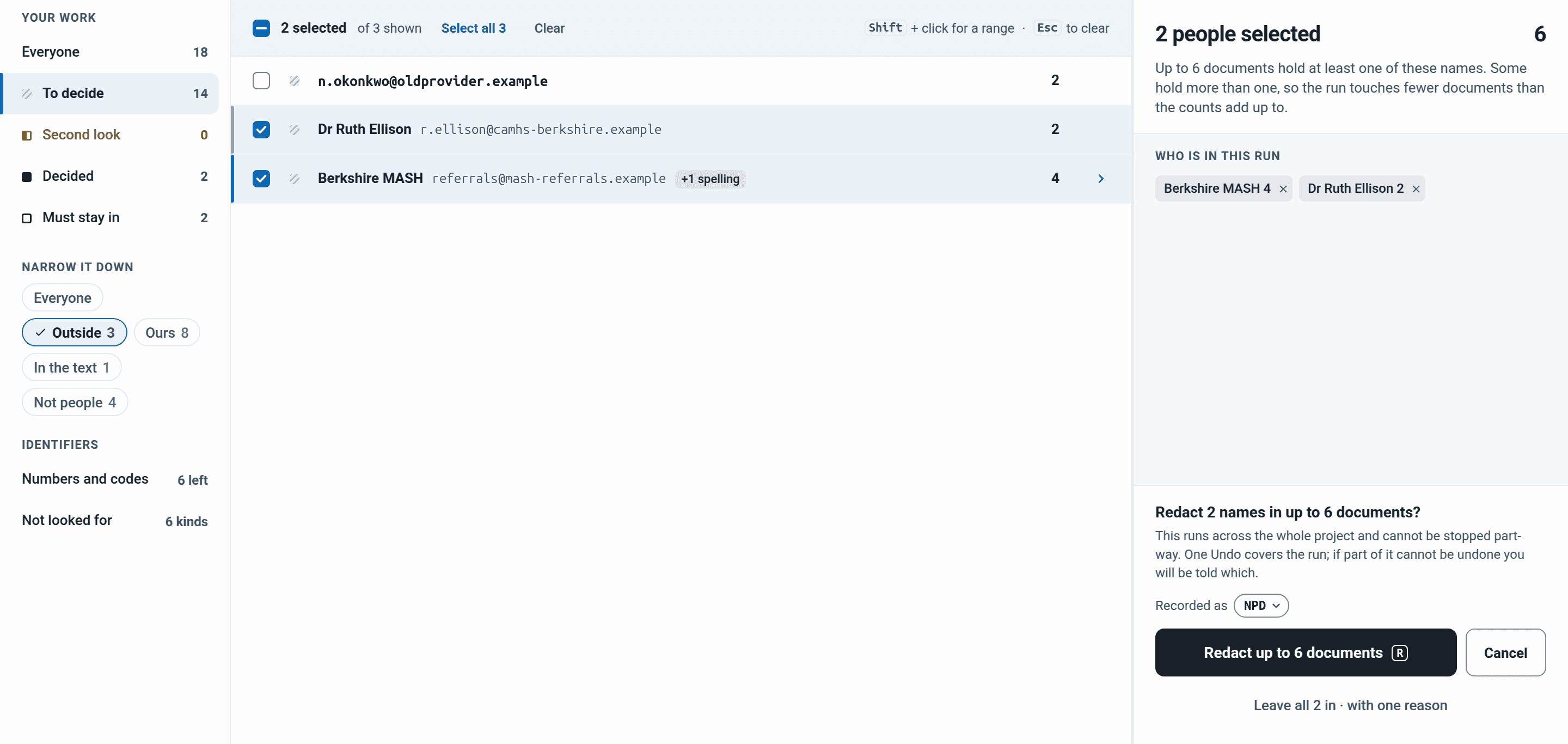
A record you can show anyone who asks
Leaving the wrong name in is a breach. Blacking out too much gets the response challenged. So every decision is recorded, with who made it and why.
Every spelling and address
Redacting someone covers their full name in its usual forms, such as “Ellison, Ruth” and “R. Ellison”, and every email address found for them.
Careful with first names
A first name or surname on its own is never redacted automatically, because it’s often someone else. You get a list of them to check by hand.
A reason for everyone left in
Leave in always asks why. Redactions carry a reason code onto the Schedule of Redactions, and Audit Logs shows who decided what and when.
Second look
Anyone redacted in some documents but not all shows up here, such as 12 of 34, with one button to finish the job.
Same person?
One person often has several addresses. RedactBox suggests rows to join so you only decide about them once.
Before you export
One page shows where everyone stands and what’s still to do by hand. Copy it to keep with your file.
What it doesn’t look for
It only finds what it looks for, and it tells you what that leaves out:
- People named only in the wording of a message
- Anything inside an attachment
- Dates of birth and postal addresses
- Bank, passport, driving licence and vehicle numbers
- Your own case or client reference formats
Use Search & Redact or a word list for these, and always read the documents as well.
Example: a parent’s SAR at a school
A parent asks for their son’s records. The parent and pupil stay in, staff stay in, and everyone else is blacked out.
- Add the parent as Made the request and the pupil as The request is about them.
- Press Ours and leave staff in with one reason, such as “Staff acting in their school role”.
- Press Outside, tick the other pupils, parents and professionals, and redact them in one run.
- Check Second look is empty, then work through Still to do by hand before you export.
Questions
Yes. Once you decide to redact a person, RedactBox redacts their full name, other spellings and email addresses in every approved document. A first name or surname on its own isn’t redacted automatically, because it’s often someone else.
It lists everyone who sent or received a message, plus names in quoted replies, sign-offs and email addresses in the text. Each person gets one row showing how many documents they’re in, with extracts so you can see how the name is used. No AI reads your documents.
Their full name in its usual forms, such as "Ellison, Ruth" and "R. Ellison", every other spelling and every email address. Titles like "Dr Ellison" are redacted too, as long as nobody else on the list shares the surname. A first name or surname on its own isn’t, because it’s often someone else. You get a list of those to check in Search & Redact.
Add them in Request details with every address and spelling they use. If the request is about someone else, such as a child, add them too. Anyone named there is never suggested or redacted.
When you approve more documents in Triage, RedactBox scans again the next time the project owner opens the tool. Anyone you’ve redacted is redacted in the new documents too, and new people join To decide.
No, and it tells you so. It won’t find someone named only in the wording of a message, it doesn’t read attachments, and it doesn’t look for things like dates of birth or postal addresses. Before you export, it lists what’s still to do by hand. Use Search & Redact or a word list for those, and always read the documents.
Phone numbers, postcodes, NHS numbers, National Insurance numbers, card numbers and sort codes, with one decision for each kind. They aren’t linked to a person, so redacting a kind includes the requester’s own numbers. If theirs appear, redact the others one at a time in Search & Redact.
Try it on your next request
Free for one document, no card needed.